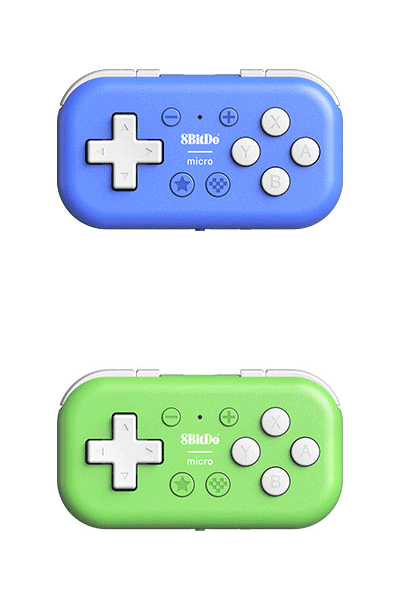
Micro
8BitDo Micro. A pocket-sized Bluetooth controller. Compatible with Switch and Android.
$19.99
Colors:
Clip Micro (Clip not included) Zero 2 (Clip not included)
Firmware: v1.05
Firmware Updaters:
Features
- Mode switch button
- Support button mapping in 8BitDo Ultimate Software - mobile version
- (Keyboard mode only)
- Support firmware update
Compatibility
- Switch (3.0.0 and above)
- Switch 2 (20.1.1 and above)
- Android 9.0 or above
- Android, iOS, iPadOS, macOS, Windows (Keyboard mode only)
In the Box
- 8BitDo Micro Bluetooth Gamepad
- USB cable
- Wrist strap
- Instruction manual
- 1. Does not support functions such as vibration, motion sensing, NFC
- scanning, infrared camera, or console wake.
Tech Specs
| Dimensions | 72x40.7x14.1 mm |
|---|---|
| Weight | 24.8g |
| Battery | 180 mAh (Li-ion) |
| Charge Time | 2 hours |
Controller Modes
- D-input
- Switch mode
- Keyboard mode
Downloads
FAQ
What does the Star button do on this Gamepad?
The Star button is a feature button that enables the Turbo function. This Turbo Mode only works in Dinput when the gamepad is paired and connected with Android devices directly via Bluetooth. The Turbo Mode is not available when the gamepad works in Switch mode or Keyboard mode. Instructions for Turbo Mode: Hold a button you would like to set the turbo functionality first, then press the Star button to enable the Turbo Mode. Repeat the same procedure to disable it. The plus/start, minus/select, D-pad and Home(heart) buttons are not supported.
What devices can the gamepad be used with in Keyboard mode?
The gamepad’s Keyboard mode is compatible with any device that supports Bluetooth, including Windows, macOS, Android, iOS/iPadOS, and Raspberry Pi.
Why doesn’t the D-pad work when connected to the device?
To activate the D-pad functions, press and hold either one of the button combos for 5 seconds based on your preference: * Minus button + D-pad up = D-pad control * Minus button + D-pad left = Left stick control * Minus button + D-pad right = Right stick control Why doesn’t the Star button work in Keyboard mode? The Star button has no function by default, but you can assign a function to it using the Ultimate Software mobile app.
Can I use the gamepad as a Joy-Con when connected to a Nintendo Switch?
No, the gamepad cannot be used as a Joy-Con on the Nintendo Switch.
Does the gamepad support vibration or motion control?
No, it doesn’t.
Does the gamepad support the button combo function in keyboard mode?
Yes, you can customize it by using the Ultimate Software mobile app.
Can I map mouse buttons and actions to keyboard modes?
No, you can’t.


